Best Controller for PC Gaming: Buy Smart
A keyboard and mouse may own competitive shooters, but the right controller for PC gaming can make racing, sports, fighting games, platformers, and action adventures feel instantly better. The catch: not every controller delivers the same comfort, compatibility, or value. Before you chase RGB lights or the biggest discount badge, choose the layout and connection that fit the games you actually play.
Why a Controller for PC Gaming Still Matters
PC gaming gives you options. That is the advantage. Some games are designed around precise mouse aiming, while others clearly feel more natural with analog sticks, triggers, and vibration feedback in your hands. A controller is not a replacement for your keyboard and mouse setup. It is another high-value tool in your gaming kit.
For driving games, analog triggers let you feather acceleration instead of jumping from zero to full throttle. In fighting games, a dependable D-pad can make directional inputs cleaner and more consistent. For third-person games, action RPGs, and couch co-op, a controller often makes long sessions more comfortable than reaching across a desk.
The smart buy is not always the most expensive model. It is the controller that works with your PC, feels right in your hands, and has the features you will use every week.
Start With the Layout You Know
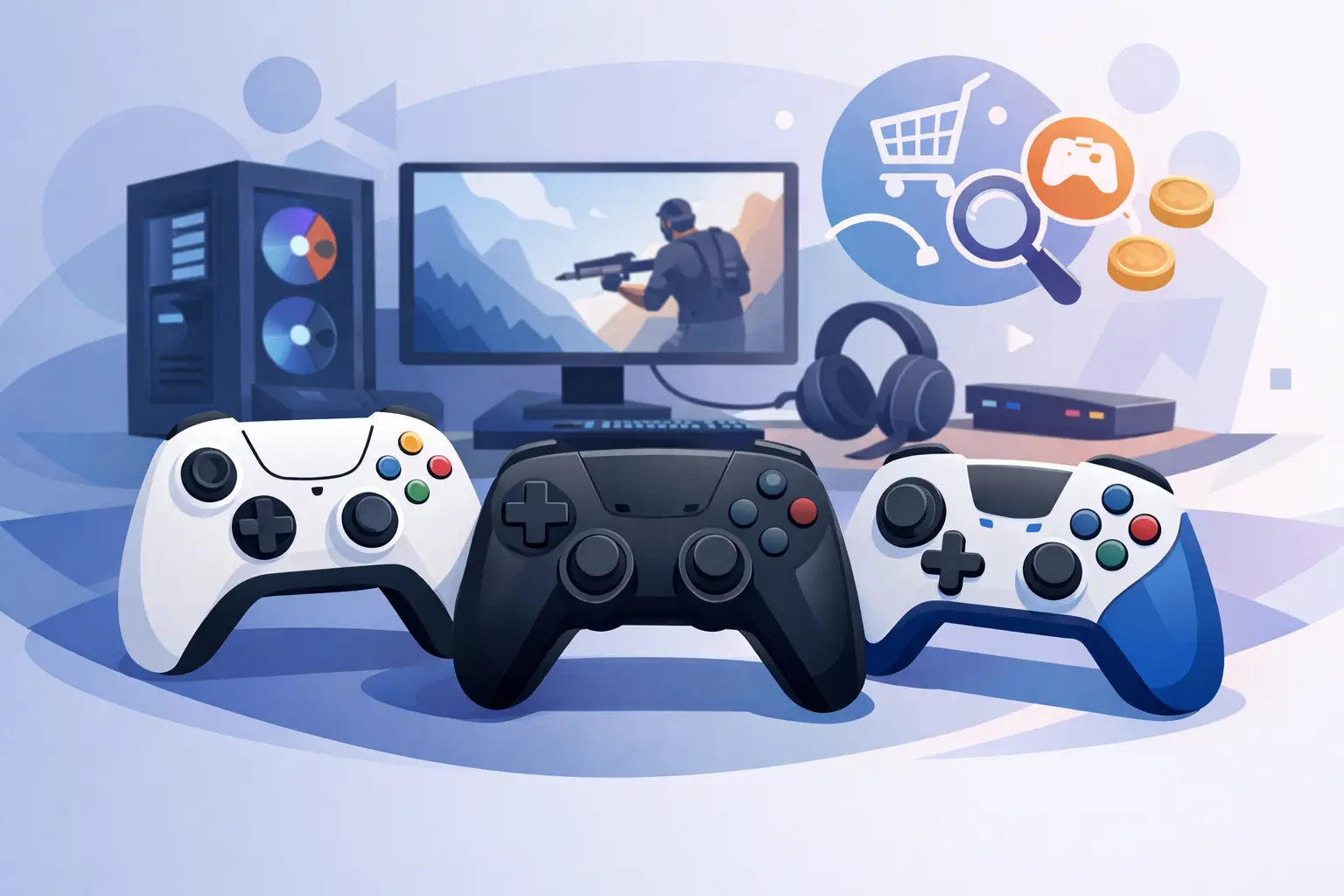
The first decision is simple: Xbox-style or PlayStation-style stick placement. Neither layout wins for everyone. Familiarity matters more than online debates.
An Xbox-style controller places the left analog stick higher than the D-pad. This design is popular with PC players because many Windows games recognize Xbox button prompts immediately. It is a strong all-around choice for racing, action, sports, and adventure games.
A PlayStation-style design uses symmetrical analog sticks near the bottom of the controller. Many players prefer it for its balanced feel, especially if they already game on PlayStation consoles. It can be a great fit for platformers, fighting games, and general play, but game button prompts on PC may sometimes still show Xbox symbols depending on the title.
There are also retro-inspired and compact controllers. These are worth considering for 2D games, arcade titles, emulation, younger players, or anyone with smaller hands. Just check whether the controller includes the sticks, triggers, and extra buttons required by the games you play.
Comfort Is a Performance Feature
A controller that looks great but causes hand fatigue after 45 minutes is not a deal. Consider grip texture, overall weight, trigger reach, and how easily your thumbs move between sticks and face buttons. Players with larger hands often appreciate fuller grips, while a lighter or more compact controller can be better for travel and smaller setups.
If you mainly play quick matches, almost any comfortable budget controller may do the job. If you spend hours in open-world games or competitive titles, ergonomic design is worth paying attention to. Small differences become very noticeable during long sessions.
Wired vs. Wireless: Choose for Your Setup
Wired controllers are the practical value pick. Plug one into a USB port, start playing, and skip battery management. They are especially useful for desktop setups, tournaments, and players who want a reliable connection without worrying about charging.
Wireless controllers offer a cleaner desk and more freedom to sit back from a monitor or play on a TV. They are ideal for couch gaming, shared rooms, and living-room PC setups. The trade-off is that you need to manage battery life, charging cables, or replaceable batteries.
Bluetooth is convenient, but a dedicated wireless receiver can sometimes provide a more consistent connection and simpler pairing. This depends on the controller and your PC hardware. If your computer does not have built-in Bluetooth, make sure you have a compatible adapter before choosing a Bluetooth-only model.
For most players, the decision comes down to how you play. At a desk with your PC close by, wired is affordable and dependable. Across the room on a large display, wireless convenience is hard to beat.
Compatibility Is the Dealbreaker
A controller can have excellent buttons and a great price, but it needs to work properly with your games. On Windows PCs, XInput support is often the easiest route. Controllers using XInput are commonly recognized by modern games with minimal setup, and on-screen prompts usually match the controller layout.
DirectInput controllers can still work well, particularly with older games or through custom configuration, but they may require more setup. If you want a fast plug-and-play experience, look for clear Windows and XInput compatibility in the product details.
Also check the basics before buying: your Windows version, wired USB connection or Bluetooth support, and whether the controller needs software for remapping or firmware updates. A simple setup saves time and gets you into the game faster.
Support for Your Game Library
Most current PC games support controllers, but not every game benefits equally. A controller is a natural match for titles built around movement, driving, melee combat, sports, and local multiplayer. Strategy games, management sims, and competitive shooters often remain better with a mouse and keyboard.
There is no reason to force one input method onto every game. Keep both on your desk and use the better tool for the job. That is one of the best reasons to game on PC in the first place.
Features Worth Paying For
Extra features can improve your experience, but only when they match the way you play. Focus on useful upgrades, not a long spec sheet.
- Hall effect sticks or triggers use magnetic sensors designed to reduce the risk of stick drift over time. They can be a strong choice for players who put serious hours into racing or action games.
- Programmable back buttons or paddles can help in competitive games by keeping your thumbs on the sticks while you trigger extra commands. They are useful, but not essential for casual play.
- Trigger locks shorten trigger travel for faster inputs in some shooters. Full trigger travel is still better for gradual acceleration and braking in racing games.
- A quality D-pad matters most for fighting games, retro titles, and platformers. If those are your main games, do not treat the D-pad as an afterthought.
- Vibration and motion controls add immersion in supported games, although support varies by title. They are nice additions rather than must-have features for every buyer.
A headset jack can also be convenient, especially when you want to plug in quickly without reaching for your PC. Just verify that audio passthrough works as expected for the controller and connection type you choose.
Don’t Overspend on Features You Won’t Use
Premium controllers can offer swappable sticks, button remapping, hair triggers, charging docks, and carrying cases. Those upgrades are excellent for players who know exactly why they need them. For everyone else, a solid mid-range wired or wireless controller can provide better value.
Budget buyers should prioritize reliable compatibility, comfortable grips, responsive buttons, and a warranty or clear return process. Fancy lighting is fun, but it should never come before performance. A lower-priced controller from a recognizable peripheral brand can be a smarter long-term purchase than an unknown model with a huge feature list and questionable support.
At Elcomputer Store, the best approach is to shop by how you play, then compare connection type, layout, and the features that matter to you. That keeps the decision simple and helps you avoid paying extra for parts of a controller that will sit unused.
Set Up Your New Controller the Right Way
Once your controller arrives, connect it before launching your game and confirm that Windows detects it. Test the sticks, triggers, D-pad, and buttons in the system settings or the controller’s companion software if available. If you use wireless mode, fully charge the controller first or install fresh batteries so a low charge does not interrupt your first session.
Then open a game with native controller support and check the button prompts. If movement feels too sensitive, adjust stick dead zones in the game settings. A small dead zone can make controls feel more responsive, while a slightly larger one can help compensate for minor stick movement. Do not change settings randomly. Play a few minutes, make one adjustment, and test again.
For fighting games, take time to test the D-pad in training mode. For racers, test trigger control and vibration. For shooters, experiment with aim sensitivity and response curves. A few setup minutes can make a good controller feel like the right one.
Make the Upgrade That Fits Your Games
The best controller is the one you reach for without thinking. Choose a familiar layout, buy wired or wireless based on your setup, and make compatibility your first filter. From there, spend on comfort and useful features, not hype.
A great deal feels even better when it improves every lap, combo, jump, and couch co-op session. Pick the controller that suits your play style, keep your keyboard and mouse close for the games that need them, and build a PC setup that is ready for whatever you want to play next.